Caps Lock - Always ON screen icon. Tip-Solution
Posted: Mon Dec 13, 2010 11:59 am
Hi. I had an issue with the Caps Lock being always on the screen when it was ON. That was something I didn't want to see.
Looking for a solution I found that this is a default behavior by design (Lenovo's Hotkeys Features Integration). It is mentioned by Lenovo in the the following link where it tells you how to change the behavior:
http://www-307.ibm.com/pc/support/site. ... selected=5
The link gives instructions for XP but not for Windows 7 (by the time I saw the link Dec 13, 2010).
For Windows 7, the instructions are:
1. Click Start, then search for "Screen Resolution" click on the "Adjust Screen Resolution" shortcut.
2. Click on "Advanced settings" link.
3. Click on On-Screen Display tab.
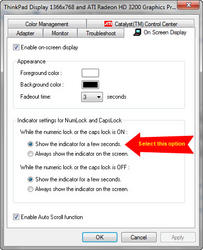
4. Under "Indicator settings for NumLock and CapsLock" section, look for "While the numeric lock or caps lock is ON" section, choose the "Show the indicator for a few seconds" option.
5. Click Apply, then click OK, and click OK to close the window.
Here a screen capture of what should be selected (you can click on the image).

Looking for a solution I found that this is a default behavior by design (Lenovo's Hotkeys Features Integration). It is mentioned by Lenovo in the the following link where it tells you how to change the behavior:
http://www-307.ibm.com/pc/support/site. ... selected=5
The link gives instructions for XP but not for Windows 7 (by the time I saw the link Dec 13, 2010).
For Windows 7, the instructions are:
1. Click Start, then search for "Screen Resolution" click on the "Adjust Screen Resolution" shortcut.
2. Click on "Advanced settings" link.
3. Click on On-Screen Display tab.
4. Under "Indicator settings for NumLock and CapsLock" section, look for "While the numeric lock or caps lock is ON" section, choose the "Show the indicator for a few seconds" option.
5. Click Apply, then click OK, and click OK to close the window.
Here a screen capture of what should be selected (you can click on the image).
