Page 1 of 1
Odd driver issues after replacing keyboard
Posted: Wed Sep 21, 2022 10:55 am
by Weboh
I had a few dead keys on my keyboard, so I replaced it. It was a simple hardware swap that is now giving me a headache with software issues.
The new keyboard is a drop-in replacement. It works perfectly without any new drivers. It's what I'm typing this post on. However, the keyboard has a trackpoint in it that suddenly decided it's a different model.
About a year ago, I replaced the clunkpad that originally came with the W540 with a nicer one with physical buttons that comes standard on the T440. After installing the proper driver, it worked fine. After installing this new keyboard, the computer views the trackpad as the old one. I reinstalled the driver that worked fine for the past year, but no dice. I tried four other drivers for that trackpad, too, but they install the control panel applet for the one that came standard with the computer and make the trackpoint jump around and click on random things.
What could be causing this? The trackpoint works almost perfectly with Windows 8.1 default generic driver, so it doesn't seem to be a hardware issue, even though it only showed up after switching hardware. I've wasted hours on this. Any advice? Thanks.
Re: Odd driver issues after replacing keyboard
Posted: Wed Sep 21, 2022 12:42 pm
by RealBlackStuff
The xx40 has a clunkpad, to be replaced with a touchpad+buttons from the xx50 series.
You need an xx50 driver.
Re: Odd driver issues after replacing keyboard
Posted: Wed Sep 21, 2022 9:10 pm
by Weboh
Thanks. I just reinstalled the one for the T450 direct from Lenovo
https://pcsupport.lenovo.com/us/en/prod ... 0and%20Pen. It still installs the clunkpad driver
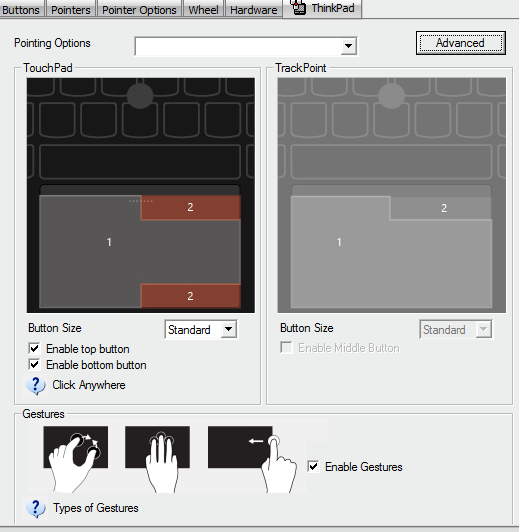
What could be causing this? It worked perfectly for a year with the old driver!
Re: Odd driver issues after replacing keyboard
Posted: Wed Sep 21, 2022 10:57 pm
by Weboh
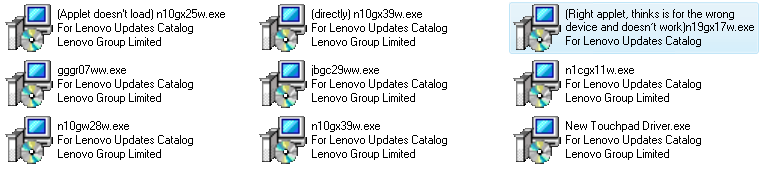
Okay, I've now tried nine (9) different drivers. Most of them claim to be for a trackpad but are actually for the clunkpad when I install them. The original one I used has a control panel applet that doesn't load and works as well as the clunkpad drivers now. I found one that I know works with this model, and the control panel applet loads and shows that. HOWEVER, it doesn't recognize the touchpad at all! This is beyond frustrating. Here's a screenshot of all the different drivers I've tried. Maybe I missed one? I also tried using Lenovo's update tool and service bridge tool directly to get more drivers from there. No dice.

Re: Odd driver issues after replacing keyboard
Posted: Thu Sep 22, 2022 12:21 am
by RealBlackStuff
Do you have an Alps or Synaptics touchpad+buttons?
Have you seen this?
viewtopic.php?f=68&t=126860
Re: Odd driver issues after replacing keyboard
Posted: Thu Sep 22, 2022 4:20 am
by Weboh
Pretty sure I have Synaptics. The driver that worked until it didn't was a Synaptics driver, and the installing the Alps drivers leaves me with a dead trackpad.
I took a look at that thread and tried the fixes. I downloaded the driver you recommended and made the changes you said to make. It still installed the clunkpad driver. Tried the same thing with the Alps driver just in case and it still killed the trackpad. The original driver stayed the same after replacing those lines, too.
Any other ideas? I'm amazed at how much knowledge you have!
Re: Odd driver issues after replacing keyboard
Posted: Thu Sep 22, 2022 8:58 am
by Weboh
Okay, I did some more troubleshooting and found out the trackpoint does work with the last driver I installed--
if I use the old keyboard. Not sure why. The
keyboard I got is supposed to be compatible with 540 and 550 models, so it should support both kinds of trackpads. The old keyboard was from an E540 and supported both.
What would you recommend I do? Is there a new keyboard driver I could install or something? Thanks.
Re: Odd driver issues after replacing keyboard
Posted: Thu Sep 22, 2022 10:33 pm
by RealBlackStuff
Your problem seems to be the (no-name knock-off) keyboard.
Re: Odd driver issues after replacing keyboard
Posted: Fri Sep 23, 2022 3:25 am
by Weboh
Right.

Anything you would recommend to fix the problem beyond getting another new keyboard? That keyboard should be compatible; it was at least advertised as being so. I don’t know how I would get another keyboard that was more compatible, and I’d rather not bother if there’s some software fix I can do.
Re: Odd driver issues after replacing keyboard
Posted: Fri Sep 23, 2022 4:05 am
by RealBlackStuff
The T540/W540 use the same Chicony or LiteOn, keyboards.
The E540 have different keyboards from T540/W540 (although also made by Chicony or LiteOn).
Don't forget that E-series are the low-life versions of proper ThinkPads.
Look in their frubom/parts lists to see the different P/N.
Re: Odd driver issues after replacing keyboard
Posted: Wed Nov 09, 2022 6:25 am
by Weboh
Update: I got a new keyboard, making sure it was on Lenovo's part list for this line. I'm experiencing the exact same issue with none of the previous solutions helping. Anything else I can try?
Re: Odd driver issues after replacing keyboard
Posted: Tue Nov 15, 2022 3:49 am
by Weboh
Can I maybe install a keyboard driver and/or easily flash the ROM or something, so it shows up as the right device and the driver installs the appropriate module? I'd rather not cross my fingers and buy a third keyboard.
Also interesting to note: I tried Linux Mint on the computer (planning on installing it soon after Windows 8.1 support drops) but I encounter the same issue: The kernel didn't recognize it as the right device and it didn't work properly. Not as versed in Linux so I wasn't able to do some of the "simple" fixes listed on thinkwiki
https://www.thinkwiki.org/wiki/How_to_c ... TrackPoint. I installed the program but no idea how to run it. Lot of the information I was able to find was years out of date, anyway.
Re: Odd driver issues after replacing keyboard
Posted: Thu Nov 17, 2022 9:46 pm
by Weboh
I retried the fix the involves modifying the driver inf. The correct form of the driver installed!… but I was still unable to activate the trackpoint from the applet. The trackpoint still works, even being "deactivated," but it likes to randomly jump around the screen at times; I guess it's not properly calibrated. I'm also unable to use the scrolling feature with the middle button. I guess that's why it always defaulted to the clunkpad version of the driver...
Any idea what could be causing this? It shouldn't be a keyboard issue, since I got one that passed Lenovo certification and has the correct FRU printed on it (04Y2348: US English Chicony - Primary). Of course, while it shouldn't be a keyboard issue, it may still be... The trackpoint still works on the old keyboard, but most of the keys have finally died on it so I can't go back. I'm about ready to just put the original clunkpad back in. It can't be more of a headache than this... Any other ideas on software fixes I could try first?
Re: Odd driver issues after replacing keyboard
Posted: Fri Nov 18, 2022 1:04 am
by RealBlackStuff
Like I said before:
RealBlackStuff wrote: ↑Thu Sep 22, 2022 10:33 pm
Your problem seems to be the (no-name knock-off) keyboard.
Although no-name can now be replaced with (unknown) GZEELE.
Having the correct FRU printed on it is no guarantee at all that it is also a genuine product.
Anybody with a halfway decent copier/printer can fake labels.
Re: Odd driver issues after replacing keyboard
Posted: Fri Nov 18, 2022 3:37 am
by Weboh
Yeah, I was afraid of that. How can I be sure I'm buying a genuine Lenovo product?
Re: Odd driver issues after replacing keyboard
Posted: Fri Nov 18, 2022 4:44 am
by RealBlackStuff
https://www.amazon.com/GZEELE-Keyboard- ... B01LYWMI8D
Guess this also applies to would-be "Lenovo" keyboards...